Under the Hood
So, what exactly is a web map? A web map is an interactive digital map that your web browser or mobile device can display, allowing you to pan, zoom, and interact with different geographic data layers. When you double-click on a web map, for example, the map framework tells your browser to zoom in. Web maps define the visual style of your map and include features like zoom controls, attribution links, pop-ups, and markers.
There are many different tools and libraries for creating web maps, which we’ll go over in the next section. Some, like Leaflet or OpenLayers, are open-source and highly customizable. Others, like Google Maps or Mapbox, require API keys and may offer additional features such as satellite imagery and route planning. Regardless of the tool, web maps rely on a combination of geographic data and code to function efficiently in a browser.
Basic Building Blocks
Web maps use a combination of JavaScript and CSS libraries to interpret and interact with geospatial data and determine how it is styled and displayed. These libraries handle user interactions—like zooming, panning, or clicking on a location—and translate them into changes on the screen. When you add data to your map, the map framework applies default styles or allows you to customize how the data appears.
CSS styles map features, like layer panels, controls, and text.
JavaScript handles all the interactions like zooming, panning, and click events.
Because many web map tools are open-source, they can be extended and customized to suit different needs. Developers can integrate plugins or write custom code to enhance functionality, such as adding layers, drawing tools, or real-time data updates. In addition to JavaScript and CSS, we’ll also use HTML to compose our map document. HTML will ensure that the CSS and JavaScript can be processed and displayed as a web map in a web browser.
HTML ensures the map is correctly formatted and interpreted by the web browser.
Anatomy of a Web Map
There is a great slideshow from Maptime.io called Anatomy of a Web Map by Alan McConchie and Beth Schechter, which informed some of this section of our workshop. Take a look if you have a chance, but understand that some of the technology that is mentioned has become obsolete.
In this section we’ll describe the two main components of a web map:
- Base Map or Base Layer
- Data
Base Maps or Base Layers
Simply put, the base map is the reference layer used to understand where you are in the map. When you click and pan or zoom, you are seeing the base map move, which refreshes the map tiles. Understanding map tiles will help explain how this movement works.
Raster Map Tiles
Raster map tiles are square sections of geographic data that are loaded to your frame of view whenever you zoom or pan across a web map. Each tile measures 256px by 256px, typcially a PNG image, and about 20-40 kilobytes. These lightweight images load quickly over an internet connection. Base map tiles provide a geographic reference base for other data layers that you might add as data overlays. You’ve probably noticed them if you’ve had choppy internet connection and had to wait for data to load:

Every time you pan your map, new tiles are loaded to fill that frame of view. The tiles outside of this view aren’t loaded because loading all the world’s tiles at once would be impractical and especially inefficient if you’re focusing on a small area. When you zoom in or out, new tiles are loaded to match the level of detail required at each zoom level.
Zoom Levels
Because web maps refresh content as you zoom in, they don’t have a traditional map scale. Instead, there are different levels associated with the amount of detail shown on the map.
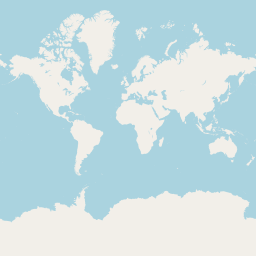
Web maps typically have around 20 zoom numbered levels. Zoom level 0 has the least amount of detail, and is from a viewpoint as far away as earth as it gets. As the zoom level number goes up, so does the detail. Zoom level 18 has enough detail that displaying building labels makes sense without a mess (imagine what building labels would look like on a web map zoomed all the way out!). Zoom level 0 consisting of only 1 tile for the entire world (this zoom level loads the fastest!). Zoom level 18 consists of around 69 billion tiles. That’s a lot of data!!!!
| Level 0 | Level 12 | Level 18 |
|---|---|---|
 |
 |
 |
| 1 tile covers the world | ~17 million tiles cover the world | ~69 billion tiles cover the world |
Map Tile Servers
You might be wondering where all of these tiles are coming from. In many cases, they’re being pre-rendered and delivered to you by a map tile server. Google, OpenStreetMap, Esri’s ArcGIS Online, USGS, and NASA, are some of the more well-known sources of web map tiles. Stamen of San Francisco also provides several beautiful map tile services through Stadia Maps, including the classic watercolor base map layer.
Map tiles are delivered using a predictably structured url, and because many of them are pre-rendered, we can link to them directly. For example: tile.openstreetmap.org/17/21055/50820.png. Let’s break this URL down:
- tile.openstreetmap.org is the subdomain and domain from where these tiles are being served.
- /17 is the zoom level of the tile.
- /21055 inticates the location of the tile on the x axis of the grid.
- /50820 inticates the location of the tile on the y axis of the grid.
- .png is the file format of the tile being served.
This is the URL structure of an “xyz” (or “zxy”) tileset.
Vector Tiles
In recent years, vector tiles have become the preferred tile type for web mapping. Instead of pre-rendered images like PNGs, vector tiles store geometries and metadata, and are rendered on-the-fly. This introduces several improvements over raster tiles:
- Removes discrete zoom levels.
- Dynamic styling.
- Supports oblique views and rotating.
- Supports the use of a variety of projections.
- Access to underlying data properties.
Data Overlays
In this workshop, we’re going to refer to the information you add to your base map as data overlays. Your base map works with your map data provide a geographic reference and your choice of style to your map.
In this workshop, we’re going to use geojson vector data (which was created in the workshop preceeding this one) and a separate xyz tileset comprising your georeferenced historical map.